How to connect Obsidian to Muse
Muse can search, read and edit the notes in your Obsidian vault through Shard Connector. You set it up from a chat: send Muse the server URL, then approve the sign-in.
Updated
Before you start
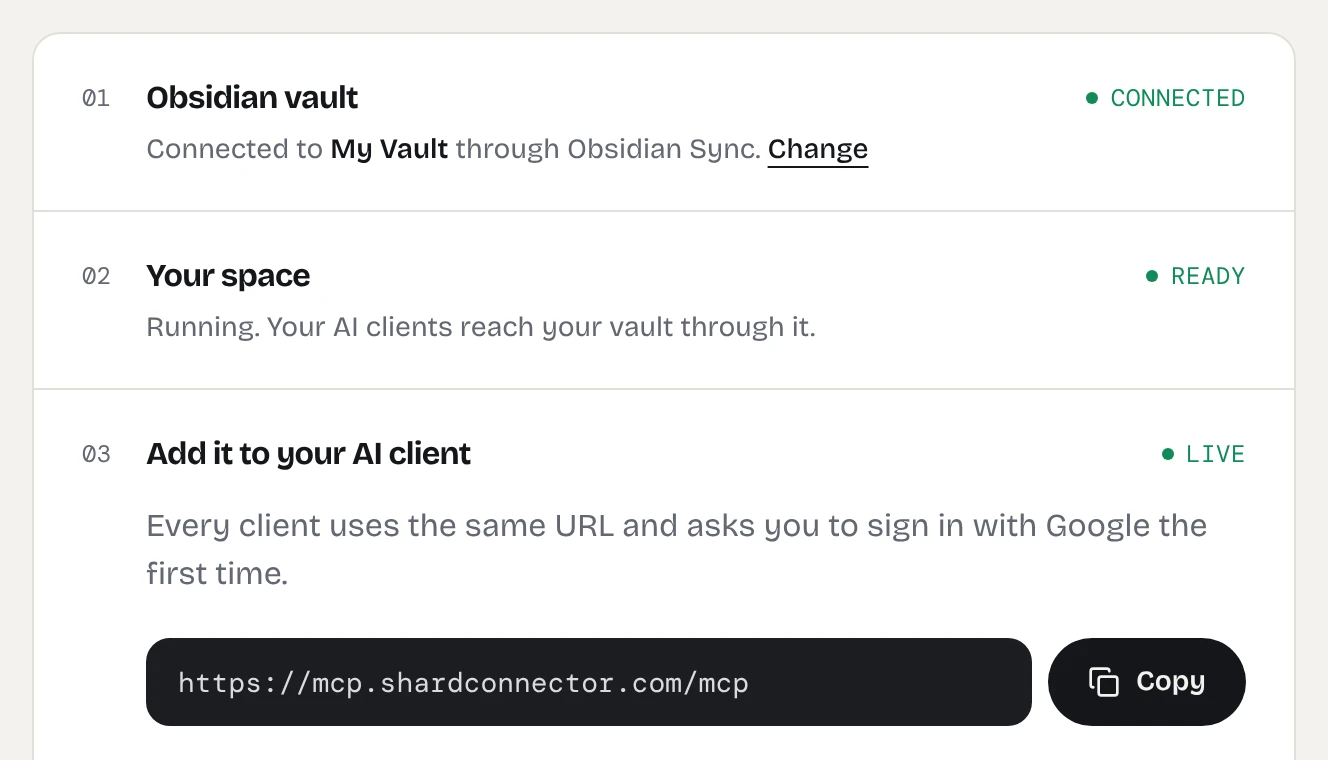
You need an Obsidian vault you sync with Obsidian Sync, and a Shard Connector space with that vault connected. Sign in with Google to set it up: it’s $2.99 a month after a 5-day free trial. For Muse:
- A Muse account at muse.ai or in the Muse app.
When your dashboard shows the space as ready, copy the server URL. It’s the same for everyone; the Google sign-in decides whose vault Muse reaches.
https://mcp.shardconnector.com/mcp
Add Obsidian to Muse
-
Send Muse the server URL
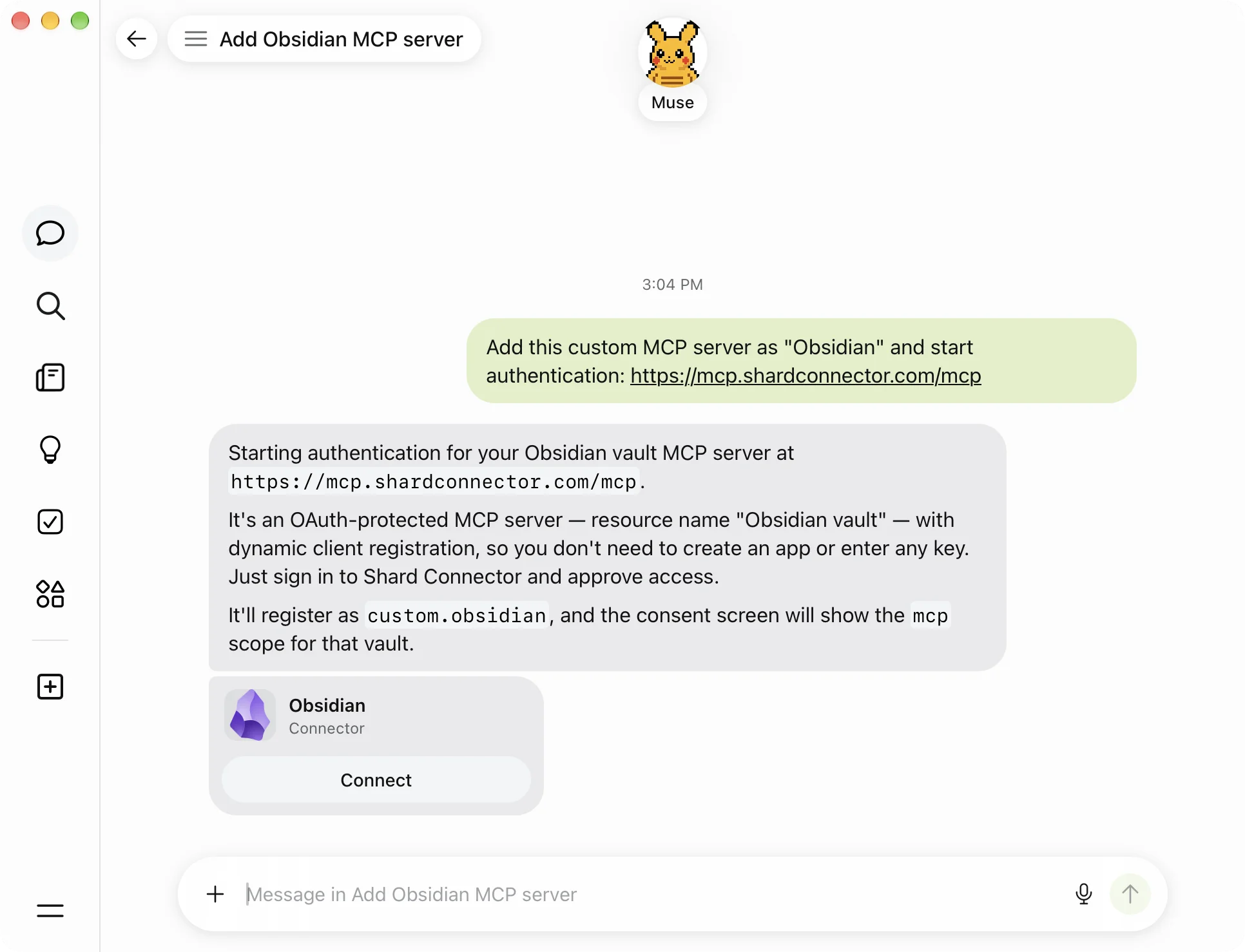
In the Muse app or at muse.ai, start a chat and paste:
Add this custom MCP server as "Obsidian" and start authentication: https://mcp.shardconnector.com/mcpSay “custom MCP server”, or Muse may pick a built-in connector instead. It answers with an Obsidian connector card.
-
Approve the connection
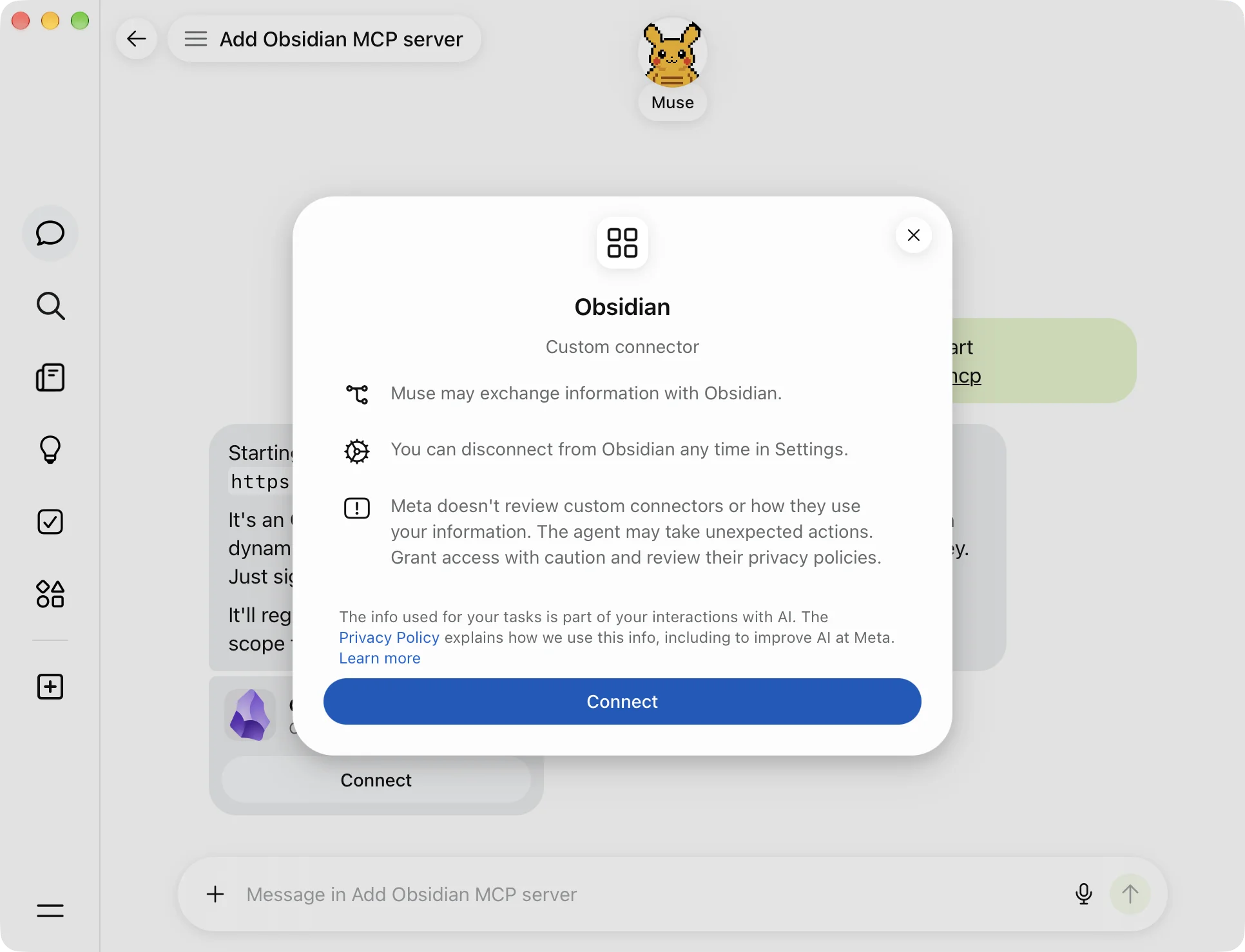
Click Connect on the card and again in the dialog. If Muse asks whether it can share information with mcp.shardconnector.com, choose Allow once.
-
Sign in to Shard Connector
On the Shard Connector page that opens, click Allow, then sign in with the Google account you use on this site. If no page opens, find Obsidian under Connectors in Muse and click Authenticate.
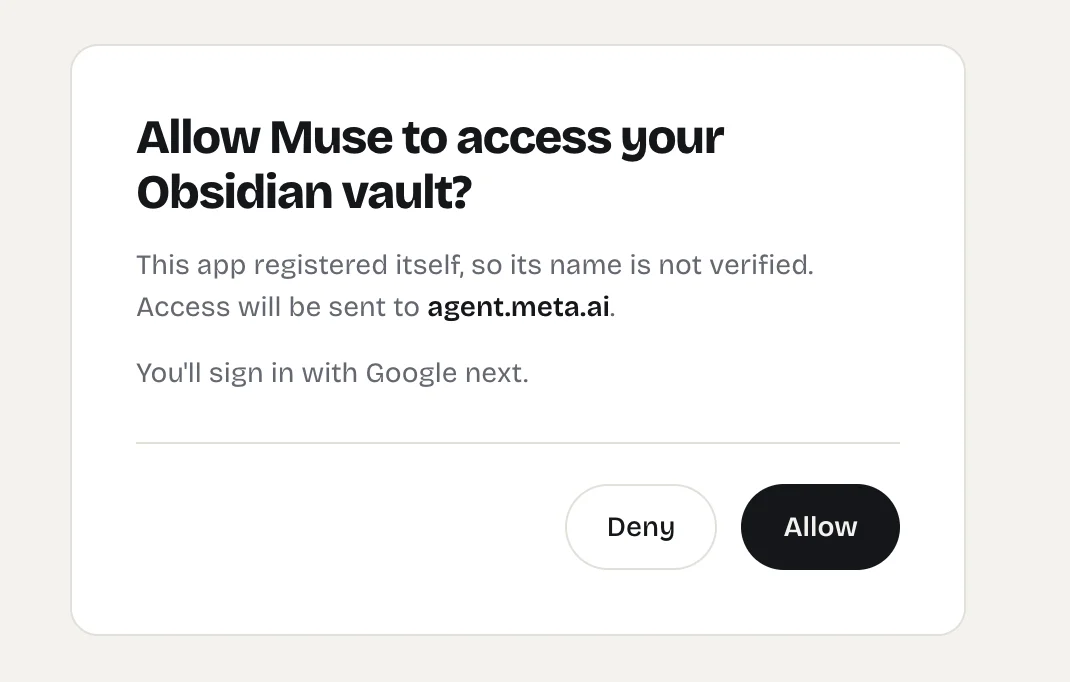
The Shard Connector page Muse opens when you connect. -
Decide on the write tools
Muse reports Obsidian as connected and enables only the read-only tools, such as
search_notesandread_note. It asks you before it turns on the tools that create, edit or move notes. Approve them if you want Muse to change your vault, or leave them off to keep it read-only.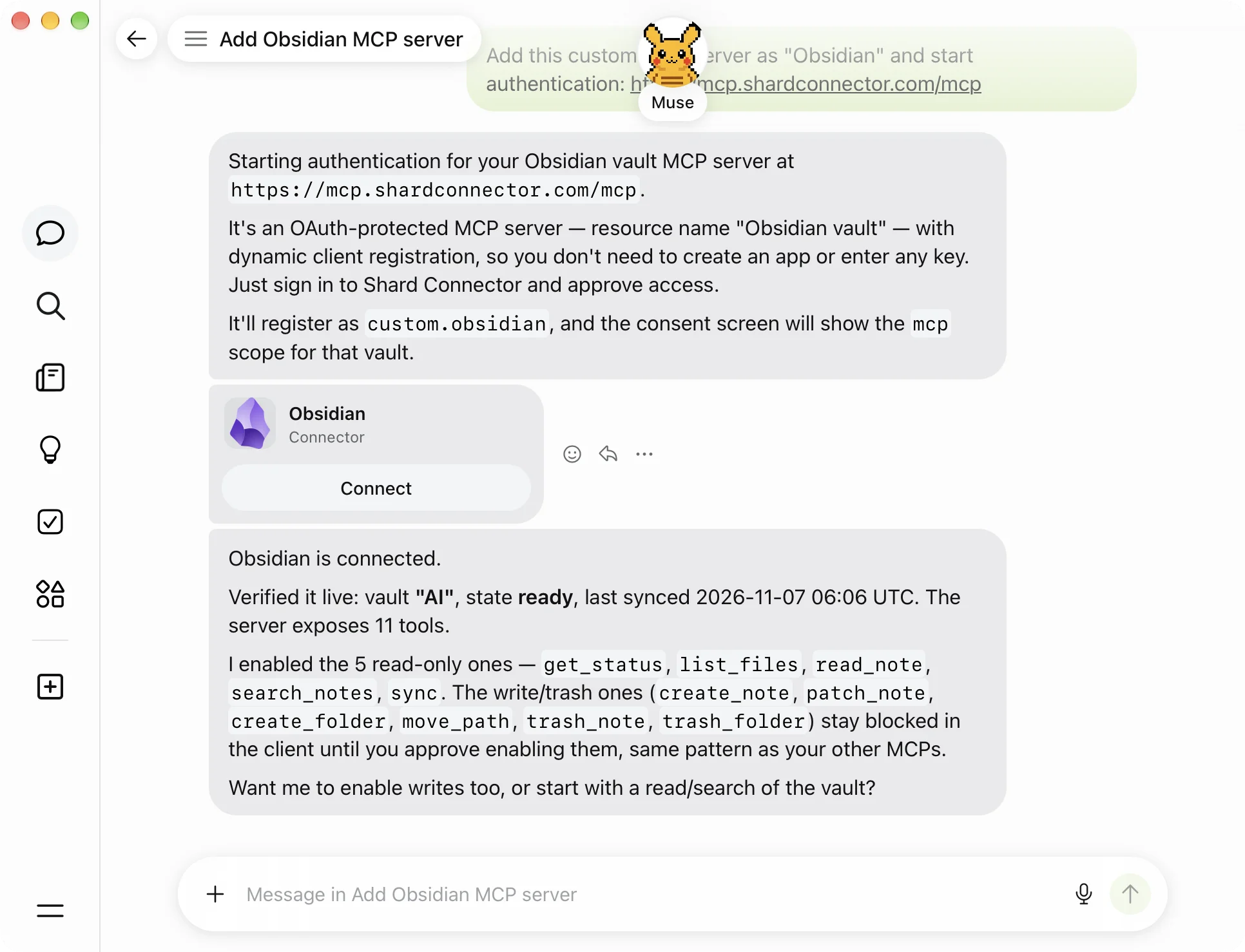
-
Give Muse a task
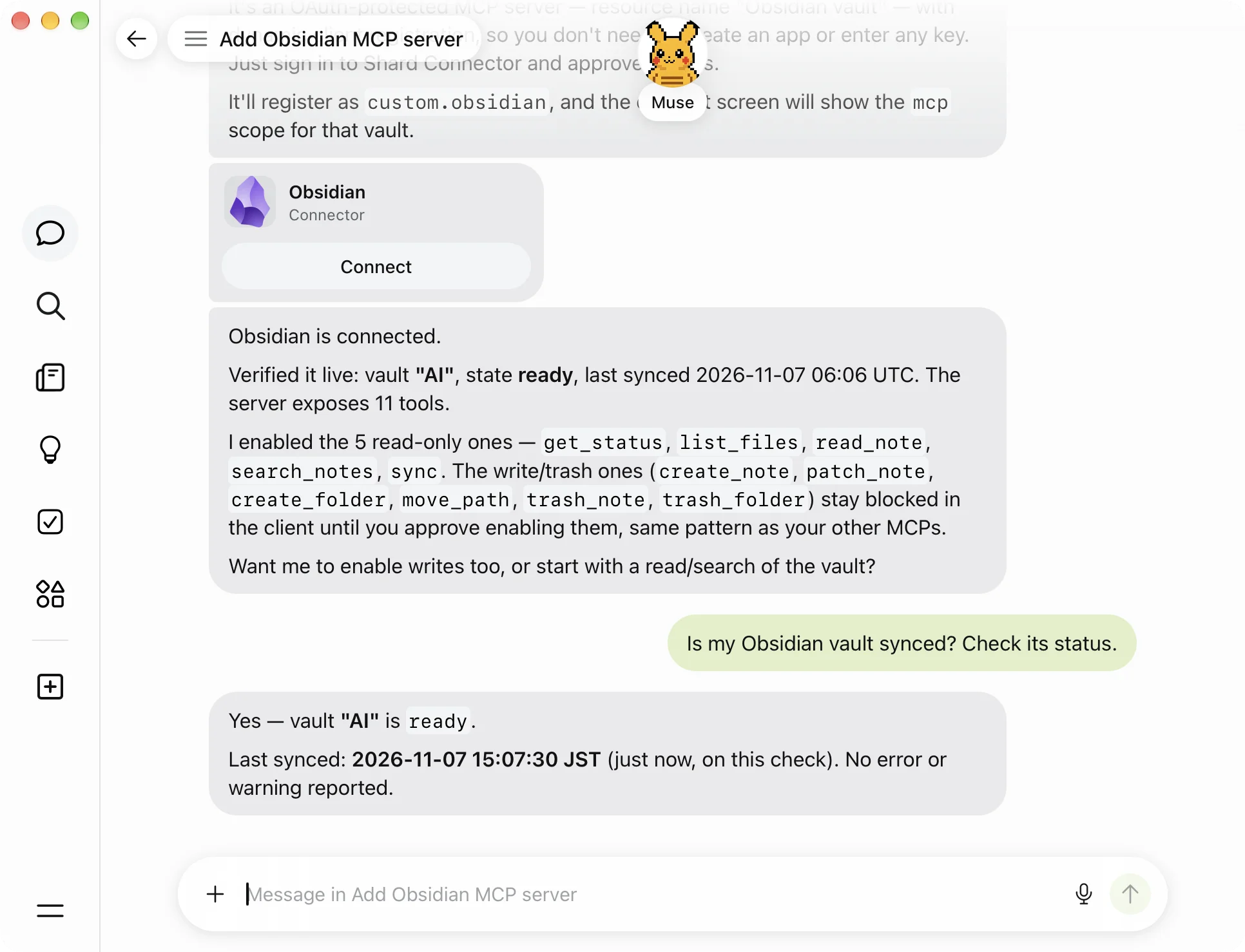
Mention your vault so Muse uses the connector, for example “Check my Obsidian vault and tell me if it’s synced.”
Things to ask
- “Look through my Obsidian vault for everything about the move to Lisbon and build me a checklist.”
- “Which of my Obsidian notes mention my landlord? Summarize each one.”
- “Turn these call notes into a note in my Obsidian Meetings folder and add the action items to my Inbox note.”
Troubleshooting
Muse picks a built-in connector. Remove it and send the message again with “custom MCP server” and the full URL.
Muse reads your notes but won’t change them. The write tools are still off. Ask Muse to turn on the Obsidian write tools and approve them when it asks.
Obsidian stays unauthenticated. Open Connectors, click Authenticate next to Obsidian and finish the Google sign-in.
Sign-in says there’s no vault for your account. Check on your dashboard that your vault is connected and your subscription is active. If you signed in with a different Google account, remove Obsidian from Connectors, ask Muse to install it again and pick the account you use on the dashboard.
What Muse can do in your vault
Muse works in the one vault you connected. It can search, read, create and edit notes and folders, and move notes to a Trash/ folder, but it can’t delete anything for good, see .obsidian or open images and PDFs. See the full list.
If Muse says the vault is syncing, your space is waking up and catching up with Obsidian Sync. Wait a few seconds and ask again.
Questions
What is Muse?
Muse is Meta’s personal AI agent at muse.ai, with apps for desktop and phone. It runs tasks on a cloud computer that keeps working while you’re away.