How to connect Obsidian to Claude
Claude can search, read and edit the notes in your Obsidian vault once you add Shard Connector as a custom connector. You add it once on claude.ai or in Claude Desktop, and it’s there in the iPhone and Android apps too. Nothing runs on your computer, and Obsidian doesn’t need to be open.
Updated
Before you start
You need an Obsidian vault you sync with Obsidian Sync, and a Shard Connector space with that vault connected. Sign in with Google to set it up: it’s $2.99 a month after a 3-day free trial. For Claude:
- Any Claude plan. The Free plan allows one custom connector.
- On Team and Enterprise plans, an owner adds the connector for the organization first. Members then connect to it, as described below.
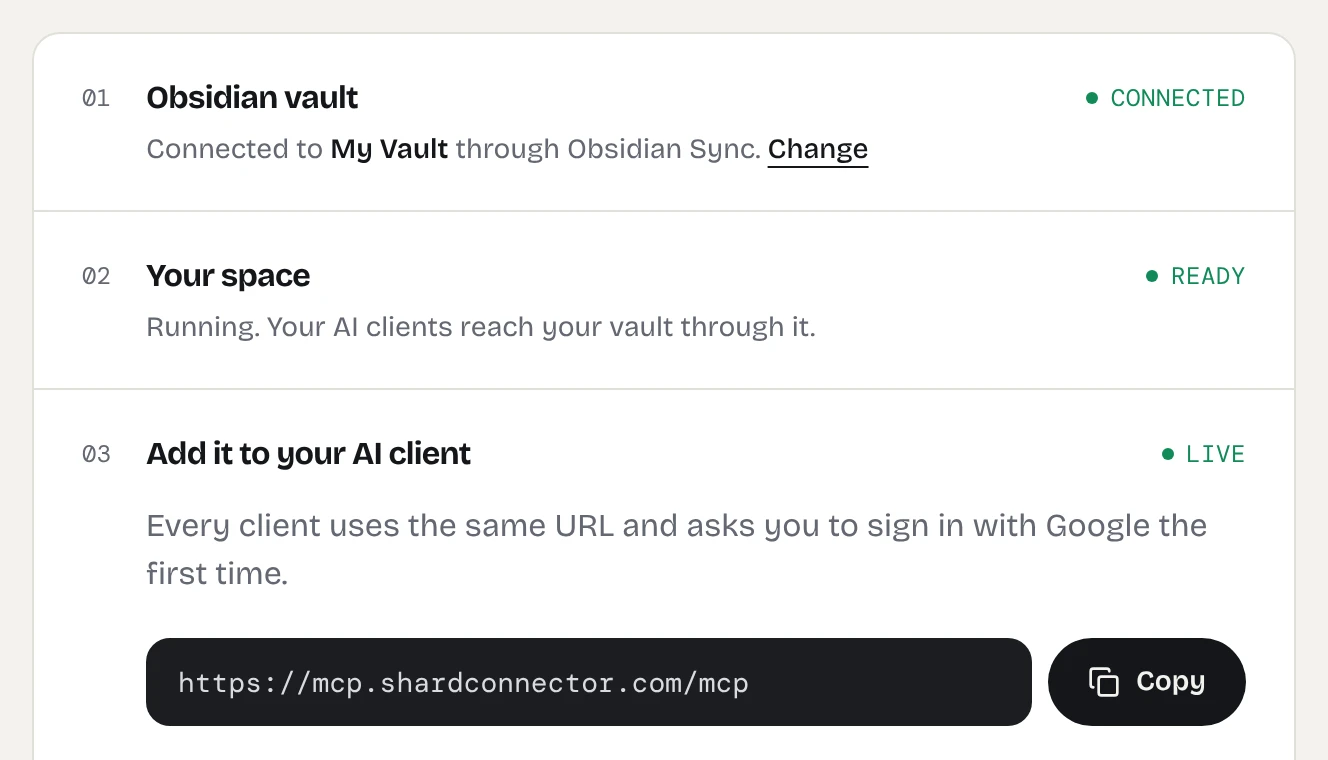
When your dashboard shows the space as ready, copy the server URL. It’s the same for everyone; the Google sign-in decides whose vault Claude reaches.
https://mcp.shardconnector.com/mcp
Add Obsidian to Claude
The quick way: Add to Claude opens Claude’s Add custom connector dialog with the name and URL filled in. Check them and carry on from step 2.
-
Open Connectors
In Claude, open Customize, then Connectors (claude.ai/customize/connectors). Click + Add, then Add custom connector.
Screenshot needed: claude-add-custom-connector.webp
Claude’s Customize, Connectors page with the + Add menu open and Add custom connector highlighted
-
Enter the name and URL
Name it Obsidian, paste
https://mcp.shardconnector.com/mcpas the URL and click Continue. If your dialog shows the name, URL and Advanced settings on one screen, leave Advanced settings empty and click Add.Screenshot needed: claude-custom-connector-dialog.webp
The Add custom connector dialog with the name Obsidian and the Shard Connector URL filled in
-
Keep the sign-in defaults
Claude shows the sign-in settings it detected. Keep them: Shard Connector needs no OAuth client ID, secret or request headers. Click Continue, then Add.
-
Allow access and sign in
Claude opens a Shard Connector page asking you to allow access. Click Allow and sign in with the Google account you use on this site. If Claude doesn’t open it right away, click Connect next to Obsidian in the connector list.
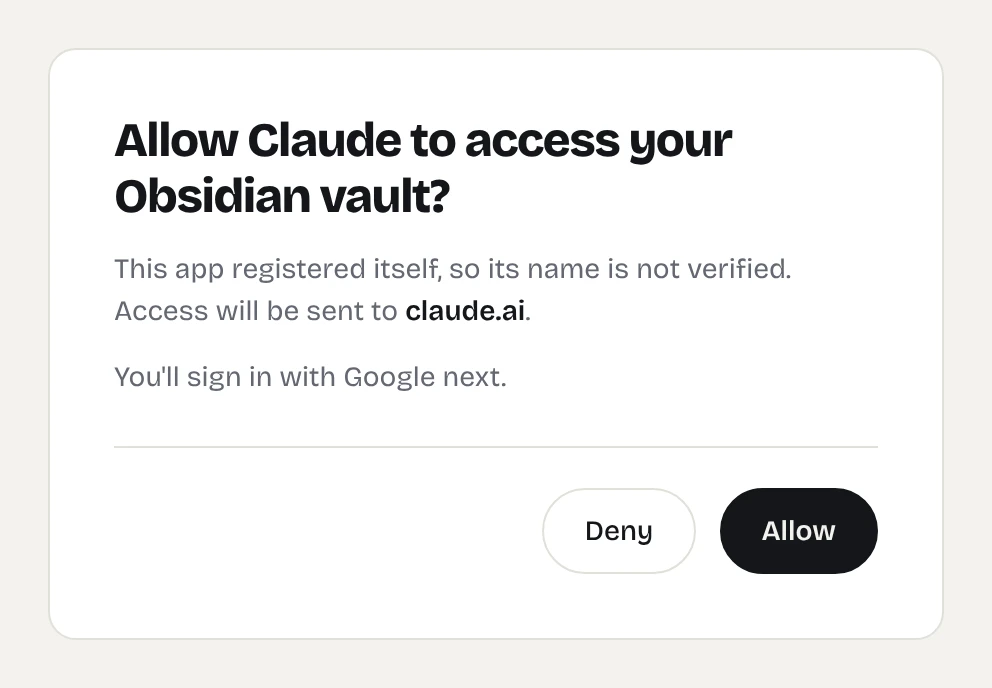
The Shard Connector page Claude opens when you connect. -
Turn it on in a chat
In a chat, click + at the bottom left of the message box, open Connectors and make sure Obsidian is switched on. Then ask about your notes.
Screenshot needed: claude-chat-connectors-toggle.webp
A Claude chat with the + menu open on Connectors and the Obsidian toggle switched on
Team and Enterprise plans
An owner adds the connector under Organization settings, Connectors: click Add, hover Custom, choose Web and enter the same name and URL. Each member then finds Obsidian under Customize, Connectors with a Custom label, clicks Connect and signs in with their own Google account, which reaches their own vault.
Things to ask
- “Search my Obsidian vault for notes about my reading list and tell me what’s on it.”
- “Find the notes in my Obsidian vault that mention Project Atlas and list their open tasks.”
- “Create a note in Obsidian at Ideas/Weekend hike.md with a packing list for two days of hiking.”
Troubleshooting
Claude says you’ve reached the connector limit. Remove the connector you have under Customize, Connectors, or move to a paid plan.
Claude doesn’t use your notes. Check that Obsidian is switched on under +, Connectors in that chat, and mention Obsidian in the request.
Claude says the vault is syncing. Your space sleeps while nobody uses it and catches up with Obsidian Sync when it wakes. Wait a few seconds and ask again.
Sign-in says there’s no vault for your account. You signed in with a different Google account than the one on your dashboard, or your vault isn’t connected yet. Click Disconnect on the connector, then Connect and pick the right account.
What Claude can do in your vault
Claude works in the one vault you connected. It can search, read, create and edit notes and folders, and move notes to a Trash/ folder, but it can’t delete anything for good, see .obsidian or open images and PDFs. See the full list.
Questions
Does it work on the Claude Free plan?
Yes. The Free plan allows one custom connector, and Obsidian can be that one.
Does it work in the Claude mobile app?
Yes. Once you’ve connected on claude.ai or in Claude Desktop, the connector is available the next time you sign in to the Claude app on iPhone or Android.
Do I need to edit claude_desktop_config.json?
No. That file is for servers that run on your own computer. Shard Connector is a remote connector, so you add it in Claude’s settings and it works in Claude Desktop and on the web alike.
Does Obsidian need to be open?
No. Shard Connector reads and writes your vault through Obsidian Sync from the cloud, and the changes show up in Obsidian on every device the next time it syncs.
Can Claude delete my notes?
No. It can move a note to a Trash/ folder in your vault, where you can move it back.