How to connect Obsidian to Grok Bot
Grok Bot can search, read and edit the notes in your Obsidian vault through Shard Connector. It has no form for custom MCP servers: you ask the bot in a chat to add one, then authenticate it.
Updated
Before you start
You need an Obsidian vault you sync with Obsidian Sync, and a Shard Connector space with that vault connected. Sign in with Google to set it up: it’s $2.99 a month after a 3-day free trial. For Grok Bot:
- A plan that includes Grok Bot. On X’s subscription plans that’s Premium, Super or Ultra; Free and Plus don’t include it.
- Grok Bot keeps its own connectors. If you already added Obsidian on grok.com, add it here too. The Grok guide covers grok.com.
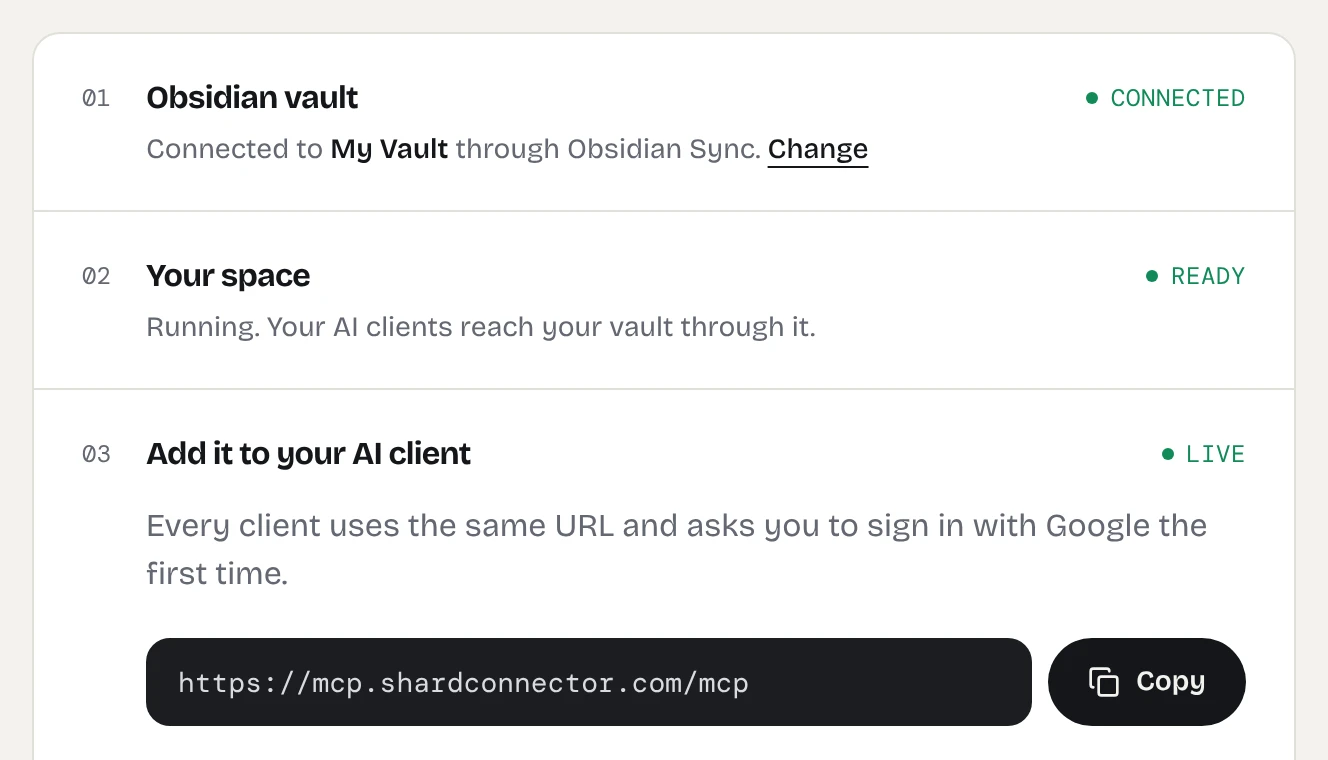
When your dashboard shows the space as ready, copy the server URL. It’s the same for everyone; the Google sign-in decides whose vault Grok Bot reaches.
https://mcp.shardconnector.com/mcp
Add Obsidian to Grok Bot
-
Ask the bot to add the server
Open a chat with your bot in the Grok Bot app or on the web and send:
Add this custom MCP server as "Obsidian" and start authentication: https://mcp.shardconnector.com/mcpSay “custom MCP server”, or the bot may look for a catalog app with a similar name instead.
Screenshot needed: grok-bot-add-and-authenticate.webp
Grok Bot’s reply asking to add the remote Obsidian server, with the Add and authenticate option
-
Confirm it
The bot asks you to confirm the server. Choose Add and authenticate.
-
Allow access and sign in
A Shard Connector page opens asking you to allow access. Click Allow and sign in with the Google account you use on this site. If it doesn’t open, go to Connect apps, find Obsidian under Installed and click Authenticate.
Screenshot needed: grok-bot-installed-connected.webp
Grok Bot’s Connect apps view with Obsidian under Installed and its status showing Connected
-
Ask the bot about your notes
Once Obsidian shows as Connected, every Bot on your account can use it. Name it in the task, for example “Use my Obsidian server to draft a weekly review from my daily notes.”
Things to ask
- “Use my Obsidian server to read this week’s daily notes and draft a weekly review in Reviews/This week.md.”
- “Use my Obsidian server to find every open task in my Projects folder and list them by project.”
- “Use my Obsidian server to search for notes about the conference and summarize what I planned.”
Troubleshooting
The bot installs a different app. It matched a catalog app by name. Remove it, and ask again with “custom MCP server” and the full URL in the message.
Obsidian stays on Authenticate. Installing and signing in are separate steps. Open Connect apps, click Authenticate next to Obsidian and finish the Google sign-in.
The bot says the vault is syncing. Your space sleeps while nobody uses it and catches up with Obsidian Sync when it wakes. Wait a few seconds and ask again.
Sign-in says there’s no vault for your account. You signed in with a different Google account than the one on your dashboard, or your vault isn’t connected yet. Remove Obsidian from Connect apps, add it again and pick the right account.
What Grok Bot can do in your vault
Grok Bot works in the one vault you connected. It can search, read, create and edit notes and folders, and move notes to a Trash/ folder, but it can’t delete anything for good, see .obsidian or open images and PDFs. See the full list.
Questions
What is Grok Bot?
Grok Bot is xAI’s agent product. Each Bot works on a cloud computer and keeps going on tasks while you’re away, with apps for desktop and phone. It’s separate from chatting with Grok on grok.com.
Does it keep working when my computer is off?
Yes. Both Grok Bot and Shard Connector run in the cloud, and Shard Connector reads your vault through Obsidian Sync, so neither your computer nor Obsidian needs to be on.
Do I add it once per Bot?
No. A server you add is available to every Bot on your account.
Can Grok Bot delete my notes?
No. It can move a note to a Trash/ folder in your vault, where you can move it back.